
AI and algorithms evolve, but a simple truth holds: When more people can comfortably use your site, more people stay, engage, and convert. Accessibility increases usability to enhance the signals that search engines reward. A clean, code-first approach to accessibility can clarify structure, improve performance, and earn engagement to amplify your current search engine optimization (SEO) strategies.
Why Accessibility Helps SEO
Accessibility ensures visitors, particularly those with disabilities and users experiencing temporary or situational limitations, can use your site without issue. But it’s also beneficial for the bots that crawl the site to index it for organic search.
That’s because accessible sites also ensure that content is easier to find and navigate. Clear structure and basic link coding improve crawling and indexing. Readable layouts reduce pogo-sticking, which in turn can affect rankings. Transcripts and alternative attributes to image tags (also known as alt text) increase keyword coverage and placement within the search results (for example, video results). Simplification of code typically improves Core Web Vitals, which can result in a rankings boost.
What Web Accessibility Is and Isn’t
Accessibility is code-level. Content practices that work with assistive technologies, like screen readers, voice input, and switch devices, require semantic HTML, clean, readable typography and contrast, keyboard support with visible focus, descriptive media (alt text, captions, or transcripts), and predictable layouts.

Plugins, widgets, and overlays might help in specific cases for visitors, but many don’t replace code-level improvements. In fact, they often add code bloat. More importantly for SEO, their improvements are not crawlable for search engines. That means that the accessibility improvements gained for visitors will not benefit your organic search performance.
Who Benefits and What to Provide
Thoughtful design helps everyone, though some users depend on it to use your site:
- Blind or low-vision users often need content that works with assistive tech, providing clear structure, explicit labels, and descriptive alternatives.
- Cognitive or attention differences require plain language, predictable navigation, short paragraphs, and reduced motion that could distract.
- Color-vision-deficient visitors need sufficient contrast and non-color cues so that meaning isn’t conveyed by color alone.
- Deaf or hard-of-hearing individuals may require text equivalents for audio, such as captions and transcripts, and sound-only cues should be avoided.
- Motor impairments, including keyboard-only or non-pointer input users, need full keyboard operability, visible focus, generous tap targets, and no focus traps.
- Photosensitive visitors require the avoidance of flashing content and compliance with “reduce motion” preferences.
Elements That Pay Off for Users and SEO
Let’s translate those needs into practical improvements:
Color and Contrast
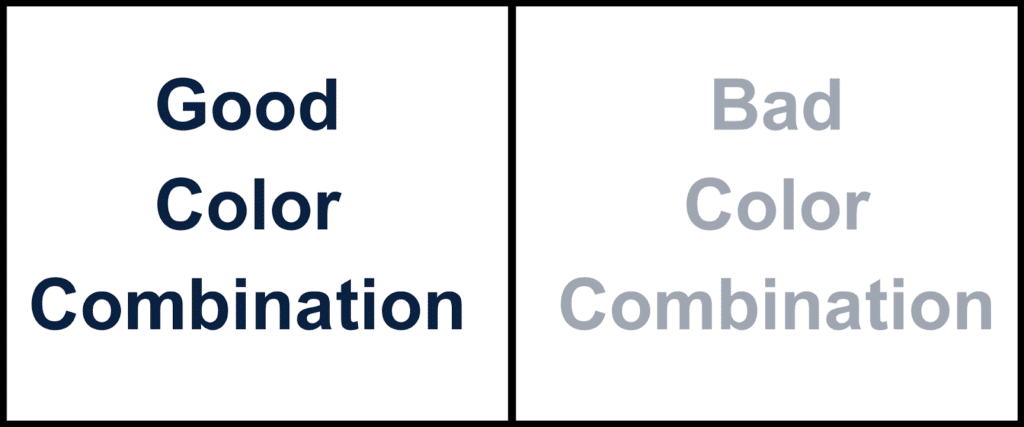
Meet Web Content Accessibility Guidelines (WCAG) for color and contrast settings. Provide non-color indicators and keep links visibly distinct, such as underlining on hover or focus, at a minimum.
Example: Dark navy text on white (#0A2342 on #FFFFFF) passes; light gray on white (#9FA6B2 on #FFFFFF) often fails.
Forms
Tie labels to inputs, provide clear error and inline guidance, and avoid placeholder-only “labels.”
Example: Instead of relying on faint placeholder text like “Enter your email” that disappears when typing, keep a visible label such as “Email Address,” with a short hint or reason below, like, “Get our newsletter delivered to your inbox!” You can include a light placeholder like [email protected], but the label should remain visible at all times.
Keyboard and Focus
Support Tab and Shift+Tab in logical order, show a visible focus outline, include a “Skip to content” link, table of contents, and page copy with anchors. Use buttons for actions and links for page navigation rather than infinite scroll.
Media and Images
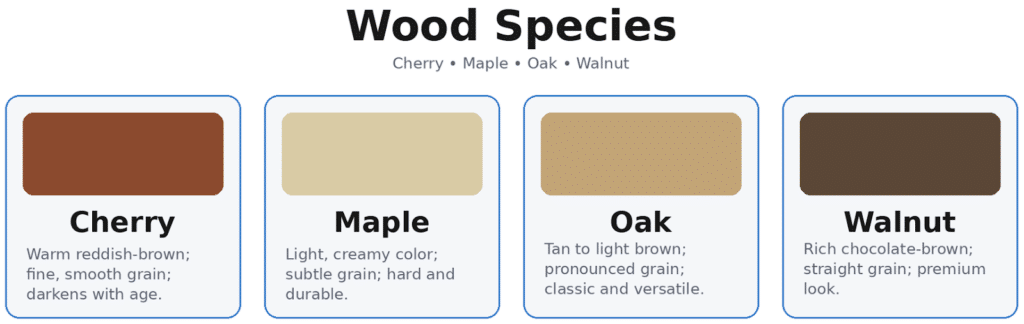
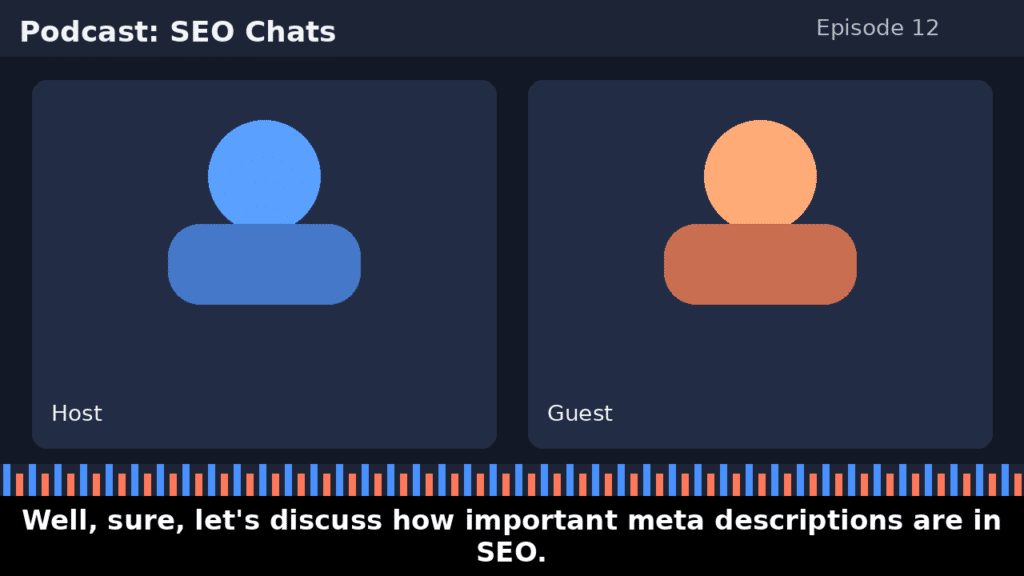
Write descriptive captions, alt text, and transcripts for charts, images, and videos that convey the purpose of the image or media.
Examples:
Structure and Semantics
Add only one H1 heading tag and logical additional headings. Create bullet or numbered lists for true lists and use tables only for data. Include meaningful anchor text, such as “view pricing,” not just “click here.” Set the [lang] language attribute.
Tap Targets
Use larger buttons (at least 44 pixels) or clickable targets on mobile and avoid crowded call-to-action (CTA) buttons to encourage engagement.
Example: On mobile, make primary CTAs at least 44×44 px with ~16 px spacing to reduce missed taps. On desktop, aim for a ≥24×24 px click area with 8–12 px spacing and a visible focus outline.
Typography and Spacing
Use a ≈16px base font and ≈1.5 line height, with comfortable paragraph spacing. Break up walls of text with subheadings, images, or a little extra white space. Use easy-to-read fonts, like Arial, Calibri, or Times New Roman.
Performance = Accessibility = SEO
Page speed is part of accessibility. It also affects Core Web Vitals and the experience of real users regardless of ability across these key areas:
- Images: Use WebP or AVIF image formats, responsive [srcset], and image compression. Load the hero image or module that contributes to the Largest Contentful Paint (LCP) score rather than lazy-loading (though it’s generally acceptable to lazy-load images below the fold to prioritize loading speed).
- Layout stability: Reserve space for media or ads to avoid increasing Cumulative Layout Shift (CLS) scores and a user interface (UI) that jumps around.
- Scripts and styles: Trim plugins to only the essential, defer non-critical JavaScript (JS), and inline critical cascading style sheets (CSS) when appropriate.
Accessibility Plugins and Overlays: Pros and Cons for SEO
Accessibility overlays can be a quick stopgap, useful for a contrast toggle or font-size control, and sometimes for surfacing obvious issues. However, in practice, they often carry a performance tax due to the use of extra JS and CSS, as well as third-party calls, that can hurt LCP and Interaction to Next Paint (INP), create false confidence because they don’t fix headings, labels, or semantics, and introduce duplicate controls or script clashes. Plugins and overlays also don’t usually equal WCAG conformance alone; the underlying code still needs to meet standards.
What to Implement:
- Start with code: Prefer native HTML roles and behaviors, add Accessible Rich Internet Applications (ARIA) only when necessary.
- Design system guardrails: Bake accessibility into components like buttons, modals, and accordions, with consistent focus states, sizes, and contrast pieces.
- Content governance: Set guidelines for alt text, anchor text, subheading hierarchies and cadences, and reading level. Review the guidelines during editorial checks.
- Measure and iterate: Run Lighthouse or axe audits, monitor Core Web Vitals in Google Search Console, and watch engagement metrics like scroll depth, time on page, and clicks to related content. Optimize and re-test as needed.
What to Avoid:
- Color-only charts; always include labels.
- Infinite scroll with no linkable pagination or “view more” button.
- Over-reliance on accessibility overlays.
- Quickly moving auto-advancing carousels and motion without controls.
- Text rendered as images (especially headings).
- Heavy interstitials and /or pop-ups that block content, such as in the example shown below.

Quick Plugin Decision Guide:
Use overlays only as supplemental UI, not as a substitute for code-level changes. Test their impact on Core Web Vitals before and after, and prioritize code-level fixes first.
- Add the accessibility tool on a staging site, check Core Web Vitals and usability, then decide.
- If a plugin reduces friction for a specific segment, such as adding a user-controlled contrast toggle, and doesn’t harm Core Web Vitals, then consider it.
- If it promises “instant compliance,” injects heavy scripts, or duplicates native controls, then skip the plugin and fix the code.
- Remember that changes visible in an overlay will not be crawlable for search engines. If SEO is a priority, skip the plugin and fix the code.
Accessibility Matters
Accessibility isn’t just a compliance box to check; it’s a competitive SEO lever. Code-first accessibility and people-first content clarifies structure for crawlers, improves performance, and keeps users engaged. Treat accessibility as an ongoing quality program: Build it into your components, your content process, and your performance budget. Treat accessibility as a habit, and improved engagement and perfromance metrics often follow.