

Dynamic Search Ads (DSAs) have been around for years, capturing unexpected or niche search queries that standard keyword lists skipped past. In my experience, we frequently utilized DSAs as a strategic play for broader brand exposure. While some advertisers certainly achieved solid conversion metrics with them, the lack of granular control often made consistent performance a challenge. For that reason, seeing the legacy campaign phase out is a welcome shift. Google is officially rolling that catch-all system into a wider, AI-driven campaign type called AI Max for Search.
The initial plan was a rapid rollout. However, after feedback from advertisers worried about accounts breaking right before the holiday rush, the timeline was adjusted. The forced sunset and auto-migration for active DSAs is now pushed back to February 2027, according to the official Google update.
Keep in mind that other automated features, including Automatically Created Assets (ACA) and campaign-level broad match settings, are still scheduled to transition into AI Max in September 2026.
The Revised Roadmap
Google is breaking the transition down into a few main steps:

- June 15, 2026 (Functionality Restored): Google turned the ability to create and edit new DSA campaigns back on so everyone can navigate the holidays smoothly.
- September 2026 (The First Wave): Any campaigns relying on Automatically Created Assets or campaign-level broad match settings will auto-upgrade to AI Max.
- January 2027 (The Cutoff): The holiday grace period ends. You won’t be able to build new DSA campaigns in the UI, Editor, or API anymore.
- February 2027 (The Final Sunset): Full auto-migration begins. Any remaining active DSA campaign will automatically upgrade to an AI Max for Search campaign.
A Quick Reminder of How DSAs Work
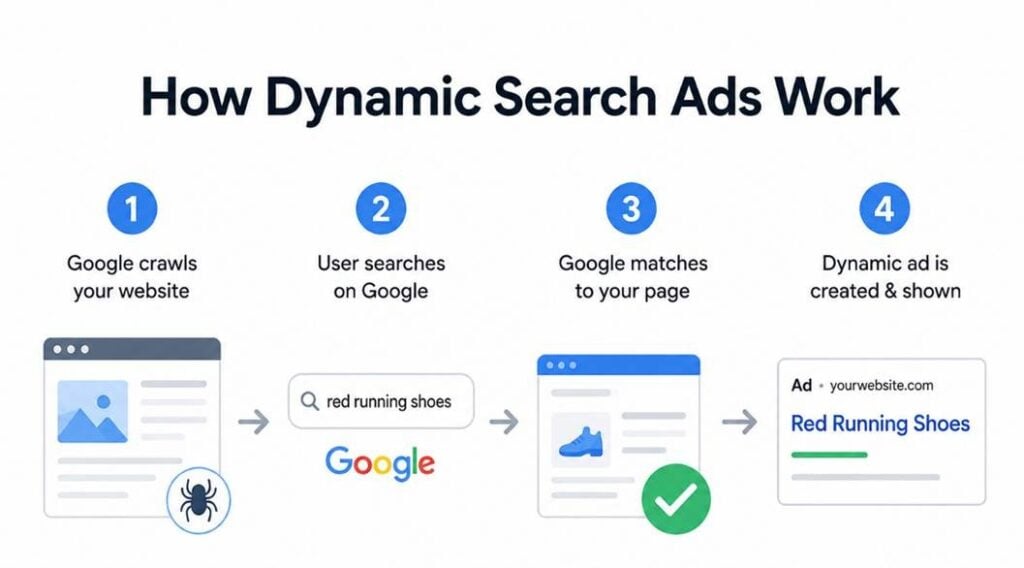
Let’s look at why DSAs became such a staple in the first place. They basically saved you from having to type out ten thousand keyword variations by doing a few things well:
- Website-Driven Matching: Google crawled your actual landing pages to match your ads to live user queries.
- Filling the Keyword Gaps: They kept accounts efficient by automatically finding new traffic for massive e-commerce catalogs or inventories that changed daily.
- Dynamic Ad Copy: Google built the headlines on the fly based on what the person typed and what your website said.
AI Max uses this same logic but layers in real-time audience signals, deeper ad copy customization, and better brand safety guardrails.
What Is AI Max for Search?
AI Max blends standard website crawling with conversational search logic. Think of AI Max as a smart optimization layer that sits on top of your standard Search campaigns. It looks at real-time data to decide when and where your ads show up, moving past the limits of basic keyword matching.
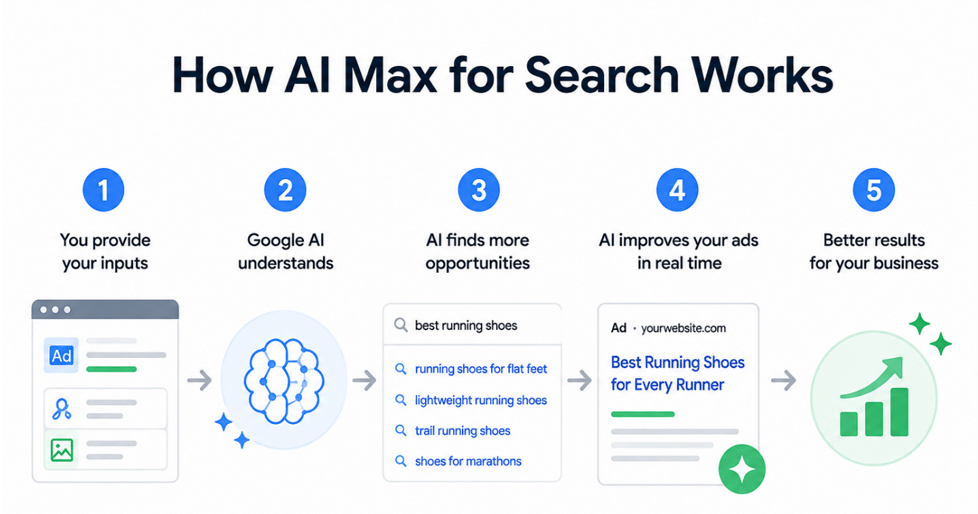
AI Max relies heavily on what signals you give it:
- Broader Account Signals: Blends your chosen keywords, active ad copy, landing pages, and domain content to hunt down high-intent searchers.
- Intent-Based Matching: Automatically adjusts your ad copy to match exactly what a user is looking for in that specific search.
- Built-In Safety Controls: Gives you campaign and ad group controls to dictate how your brand talks and where your paid traffic lands.
Why Is Google Making This Change?
The way people use the internet has changed. We don’t just type keyword phrases into a search box anymore; we ask highly conversational, complex, and intent-driven questions.
AI Max is built to read between the lines of those complex queries, getting your brand in front of users you’d miss with a standard exact match list. As Google’s search engine changes, our jobs are shifting from manual keyword mapping to feeding the algorithm clean data, setting up accurate tracking, and locking down brand safety rules.
The Benefits of AI Max for Search
When launched with the right guardrails, AI Max uncovers valuable search volume that traditional keyword lists miss. It’s particularly helpful for managing large accounts where product inventory changes too fast for manual keyword mapping.
If your website has a solid structure and your conversion tracking is accurate, this automation layer becomes a powerful tool for scaling search volume efficiently and dynamically generating relevant ad variations.
AI Max Risks to Watch Out For
Even with the upside, automated systems can run off the tracks if you don’t give them proper human oversight:
- Giving Up Bidding Control: You lose row-by-row control over individual keyword bids. Instead of manually adjusting bids based on exact performance metrics, you are entirely dependent on automated Smart Bidding to manage your budget efficiently.
- “Garbage In, Garbage Out”: If a client’s website has outdated or thin content, the AI is going to write bad copy and match to poor searches.
- Tracking Issues: Inaccurate tracking allows the algorithm to optimize toward fake/spam leads or low-intent clicks.
- Wasteful Spend: Without a strong list of negative keywords, broad automation can easily waste budget on completely irrelevant search queries.
Your Step-by-Step AI Max Preparation Checklist
Turning AI Max on takes two seconds, but setting up the guardrails is where you actually protect a client’s budget. Use this five-step checklist to get your campaigns ready:
Step 1: Website Cleanup
AI Max crawls your website to build ads. Make sure primary landing pages clearly explain what you do, what you sell, and why you’re different. Take some time to spot-check for broken, thin, or outdated pages, so you’re ready to exclude them from the AI’s crawl list.
Step 2: Know Your Campaign Settings
Turning AI Max on at the campaign level automatically enables two major default settings (Text Customization and Final URL Expansion). Review these settings before launching:
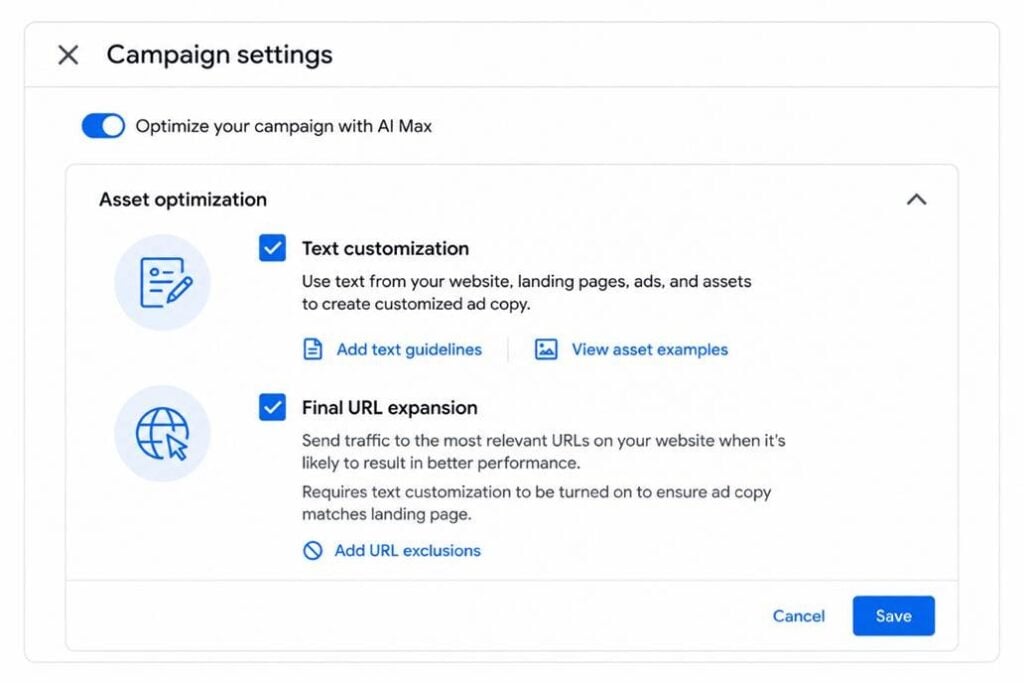
Text Customization: Gives Google permission to write headlines and descriptions straight from your website. Keep a close eye on your brand messaging by navigating to your Ads and clicking View assets details on your Responsive Search Ad.
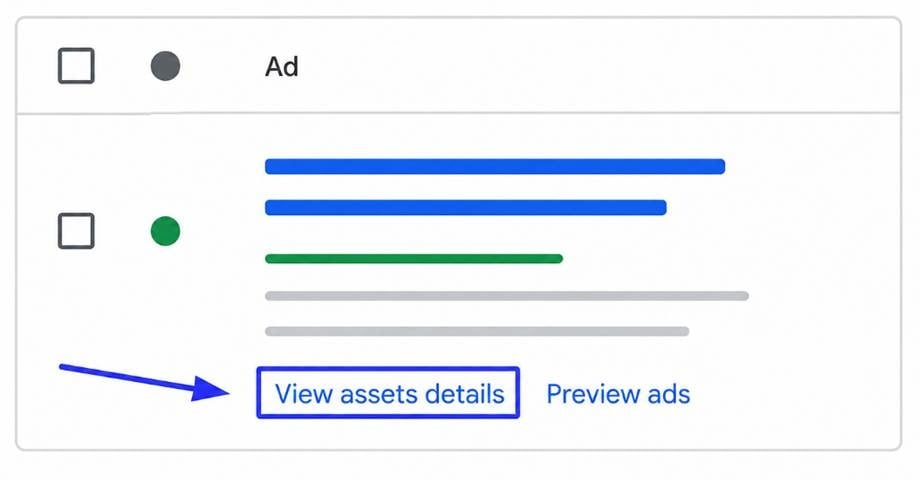
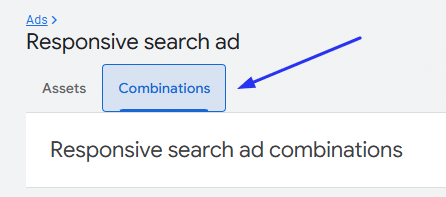
On the Assets screen, check the Added by column: any assets automatically generated by the system will be labeled “Google AI”. If you want to see exactly how these assets look when combined live on the search results page, simply click over to the Combinations tab at the top of the report.
Final URL Expansion: Allows Google to route searchers away from your main landing page to other links on your site. To prevent the AI from sending paid traffic to broken links, login screens, or your privacy policy, click the Add URL exclusions link directly in the campaign settings. You can paste in specific URLs or set up quick rules (like excluding any URL containing /return-policy) to protect your budget.
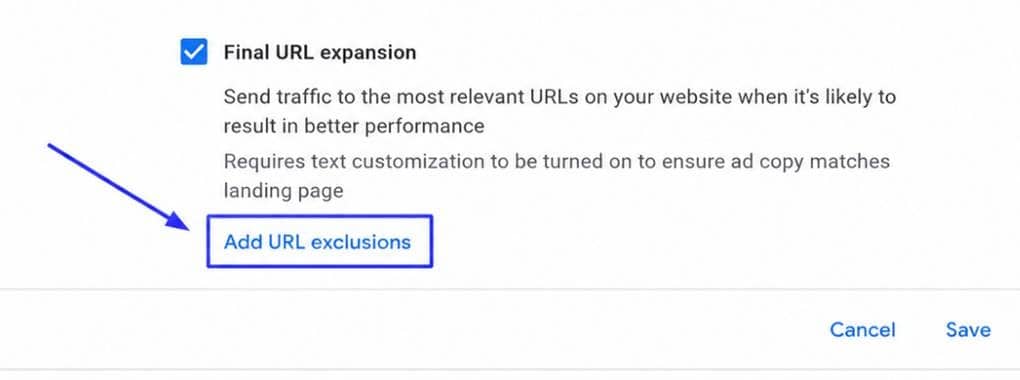
Important to Note: Text Customization and Final URL Expansion act as a package deal. If you turn Text Customization off, Final URL Expansion will automatically shut off too, because the AI requires permission to dynamically rewrite your headlines to match any new landing pages it selects.
Step 3: Use Text Guidelines to Stop Off-Brand Ad Copy
Text Guidelines are your best defense against bad AI-generated text. They tell Google exactly what it is never allowed to say.
- Where to find it: Inside your campaign, go to Campaign Settings ➔ scroll down to AI Max for Search campaigns ➔ under the Asset Optimization section, click Add text guidelines.
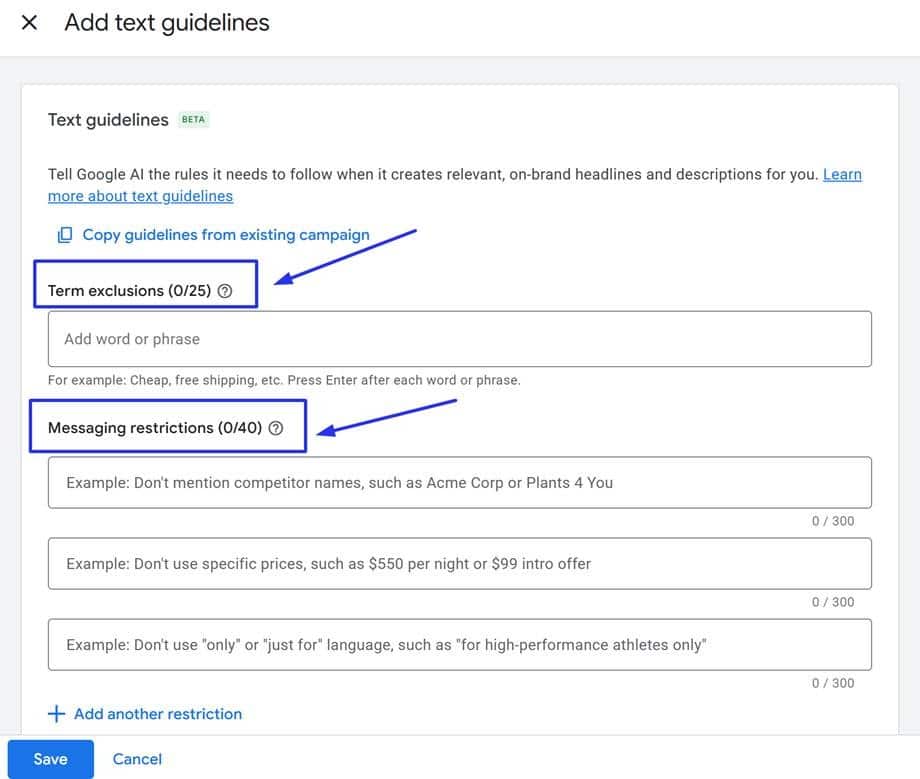
You can add 25 term exclusions and 40 messaging restrictions to keep the AI in check. For a deeper look at setting these parameters up, you can review Google’s official support page on text guidelines. While every account requires a unique approach, here are some common categories to consider when building your initial baseline:
- No Over-Promising: Exclude rigid phrases like “We guarantee #1 rankings” or “100% risk-free.”
- Protect the Brand Tone: Block overused buzzwords like “elevate”, “unleash,” or “supercharge.”
- Legal and Compliance Rules: If your client’s legal team has strict rules about warranties, exclude terms like “lifetime warranty” so the AI doesn’t accidentally use them.
- Block Competitor Copy: Input competitor names to prevent the AI from accidentally scraping their taglines and putting them into your headlines.
One note: at Google Marketing Live, Google announced AI Briefs, which will replace text guidelines. AI Briefs is currently in beta, which you can request from your Googler Account Strategist.
Step 4: Add Negatives and Brand Filters
Don’t launch a campaign without setting up your core campaign-level guardrails to keep the automation focused on the traffic you want.
- Negative Keywords: Apply your standard negative keyword lists directly to the campaign to stop ads from showing up for irrelevant or low-intent queries.
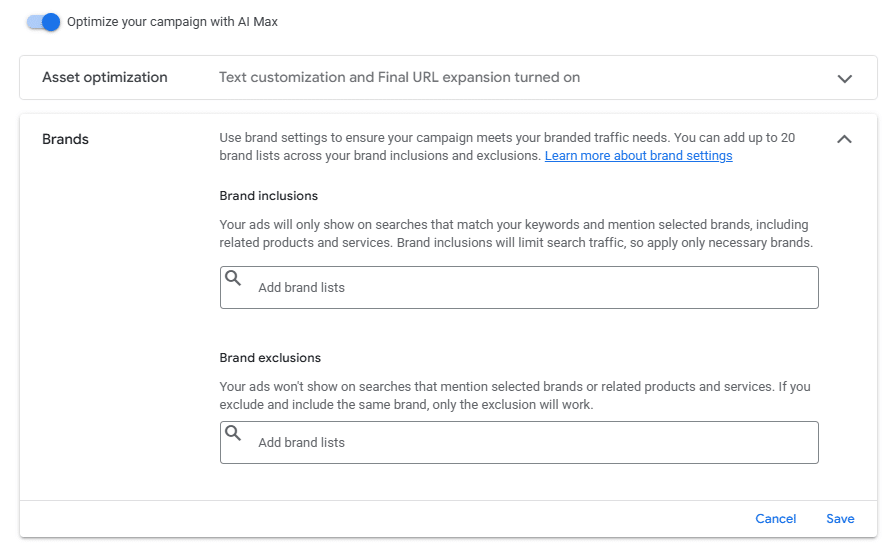
- Brand Inclusions: These are handy for when you want to only target branded terms – either your own or brands you sell.
- Brand Exclusions: It’s handy to exclude specific competitor or brand lists you want to prevent the AI from targeting, especially if you are creating non-brand campaigns. AI Max is great at showing ads on your own brand name and making it appear the campaign is doing better than before.
Step 5: Try “URL Inclusions” at the Ad Group Level (Alternate Setup)
To gain control over exactly where traffic goes without turning off the automation entirely, you can choose to steer the AI at the ad group level instead of using campaign-wide expansion:
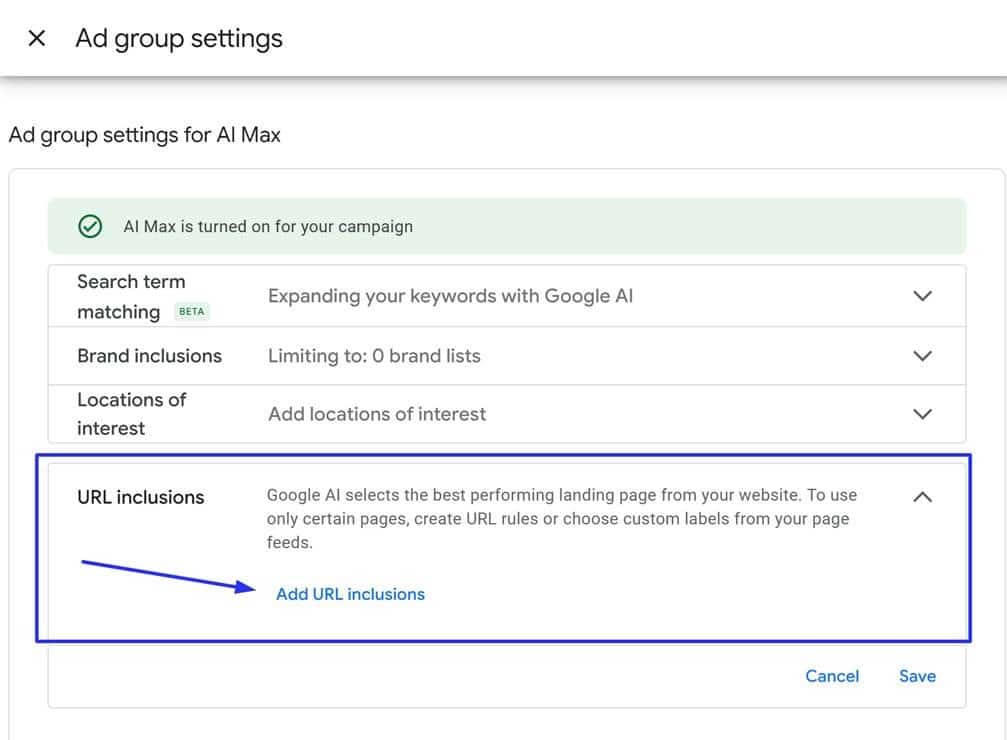
- Turn AI Max ON for the campaign.
- IMPORTANT: Turn Final URL Expansion OFF at the campaign level.
- Drop down to the Ad Group settings and turn URL Expansion ON.
- Click Add URL Inclusions to name the exact page paths (like /mens-apparel/running) that this specific ad group is allowed to use.
What This Means for Your Keyword Strategy
Keywords aren’t gone; they’re just changing roles.
- Keywords as Core Intent Signals: Instead of acting as strict triggers, your target keywords are now directional signs that help guide the AI’s intent matching.
- Defensive Match Types: Exact match and phrase match are still necessary to protect your core brand terms and highest-converting non-brand keywords.
- Negatives Are Everything: In an automated world, your negative keyword list is your most important tool for steering the budget away from bad spend.
Your Post-Launch Optimization Routine
AI Max is not a “set-it-and-forget-it” campaign type. To keep performance steady, establish a predictable review workflow:
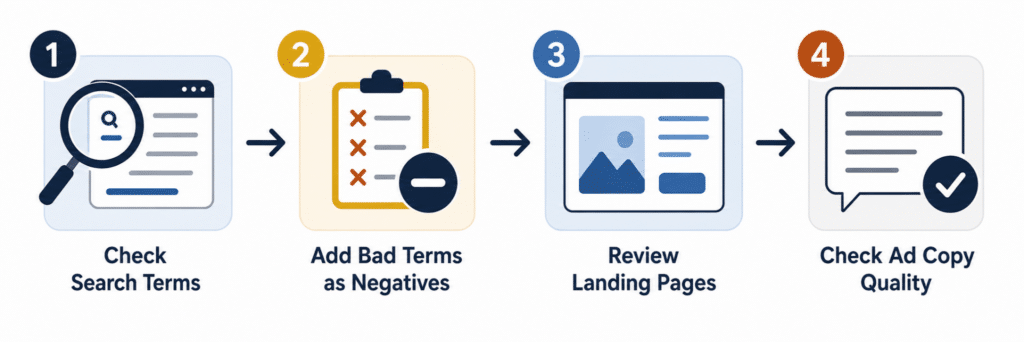
The First 14 Days: Heavy Audits
When a campaign goes live, the AI will test queries aggressively. Jump in early during this initial learning window to protect your budget:
- Check Search Terms (Every 2 to 3 Days): Audit the search queries triggering your ads. Add any junk or low-intent queries as negative keywords.
- The “Don’t Over-Negative” Trap: Avoid cutting out broader queries too quickly. A search term might not perfectly match your exact product line but can still show highly relevant intent. For example, if you sell running socks and the AI maps to running shoes, don’t negative it immediately. A runner looking for shoes is heavily active in your target space and highly likely to add a premium pair of performance socks to their cart.
- Watch for Traffic Spikes (Weekly): Monitor your traffic closely to make sure AI isn’t accidentally blowing through your budget on a single, random page of your site.
The Maintenance Phase: Ongoing Health Checks
Once the data normalizes and stabilizes, you can drop back to a standard monthly routine to review three main areas:
- Quality Score & Copy Adjustments: Head over to your Keywords tab and make sure you add the columns for Quality score and Landing page experience. If you notice keywords pulling in low Quality Scores, use that data as a trigger to adjust your ad copy headlines or refine the messaging on your landing pages to improve search relevance.
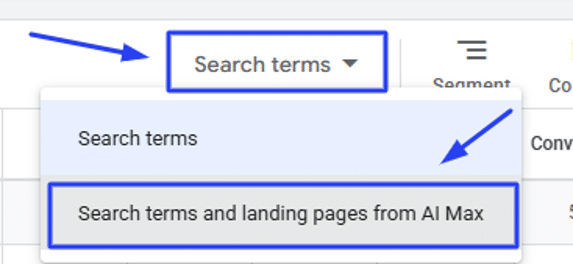
- Landing Page Performance: Look at where your traffic is landing. To view this data, expand the Insights & reports sub-menu in your left-hand navigation panel and click on Search terms. From there, switch the view to Search terms and landing pages from AI Max. This is the best place to review performance because it shows you the exact search term, generated headline, and selected landing page all in one view so you can easily audit relevance.
- Lead Quality: Cross-reference your leads with client feedback or your internal CRM data to ensure the broader query matching isn’t bringing in spam or fake form fills.
Your Next Steps: Prepare, Don’t Scramble
The transition from DSAs to AI Max doesn’t have to be a stressful scramble right before the holidays. Treat Google’s new timeline as a massive strategic win. Use the coming months to clean up website data, audit your tracking tags, and test the new UI settings safely. The automation handles the execution, but your strategy and guardrails are what actually make it perform. Go try it out and don’t wait until the last minute to test the waters!