

You turn off an Advantage+ feature while building a Meta campaign, only to see the Advantage+ label appear somewhere else. This raises a few questions. Did the setting not save? Did Meta turn it back on? Are you actually running the campaign setup you selected?
Advantage+ is not a single feature that can be turned on or off across an entire campaign. It is Meta’s name for a collection of automated tools that can influence your campaign structure, budget, audience, placements, and creatives. Turning off one of those tools does not necessarily disable the others or remove the Advantage+ label from your Meta campaign.
Advantage+ Is Not One Setting
Depending on your campaign objective and account, you may encounter several Advantage+ features, including:
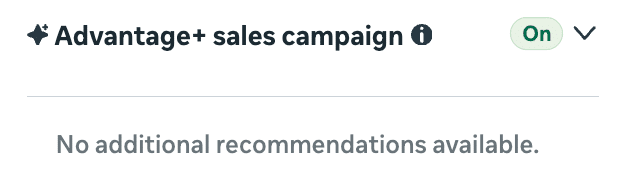
Advantage+ sales and app campaigns
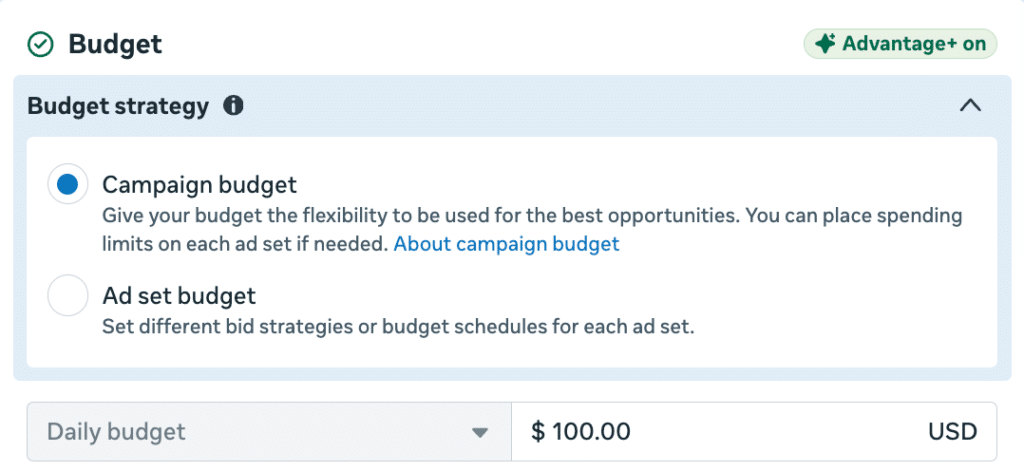
Advantage+ campaign budget
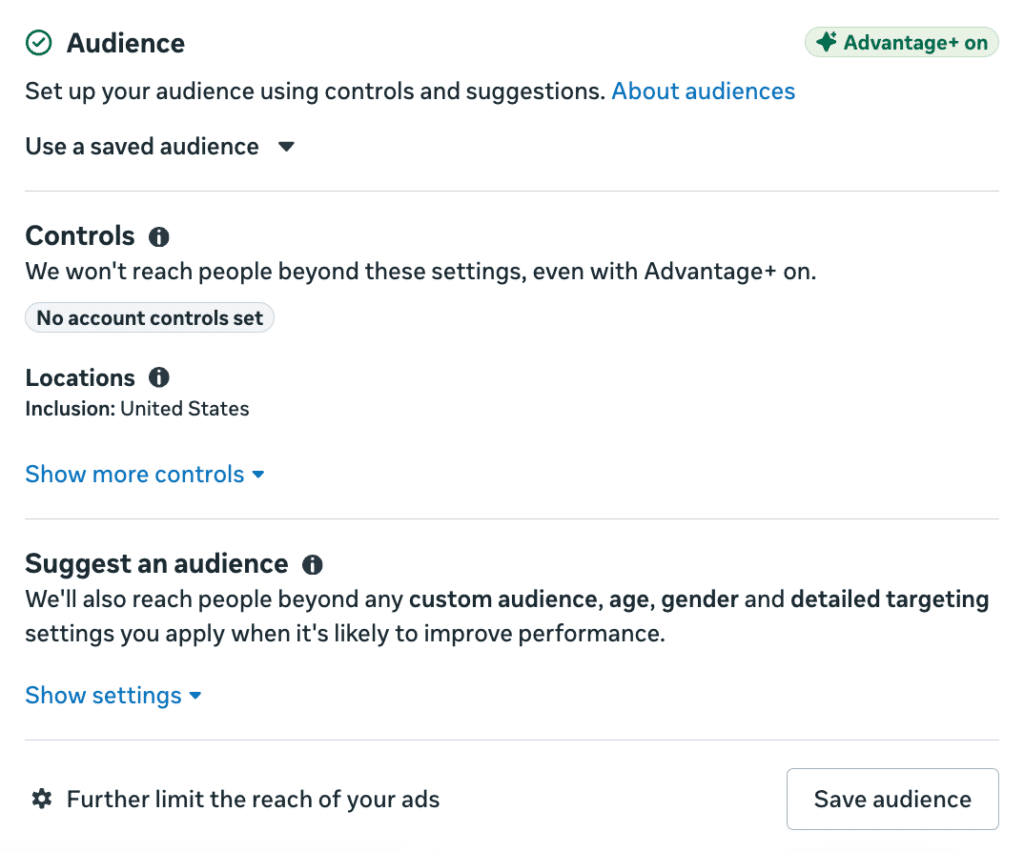
Advantage+ audience
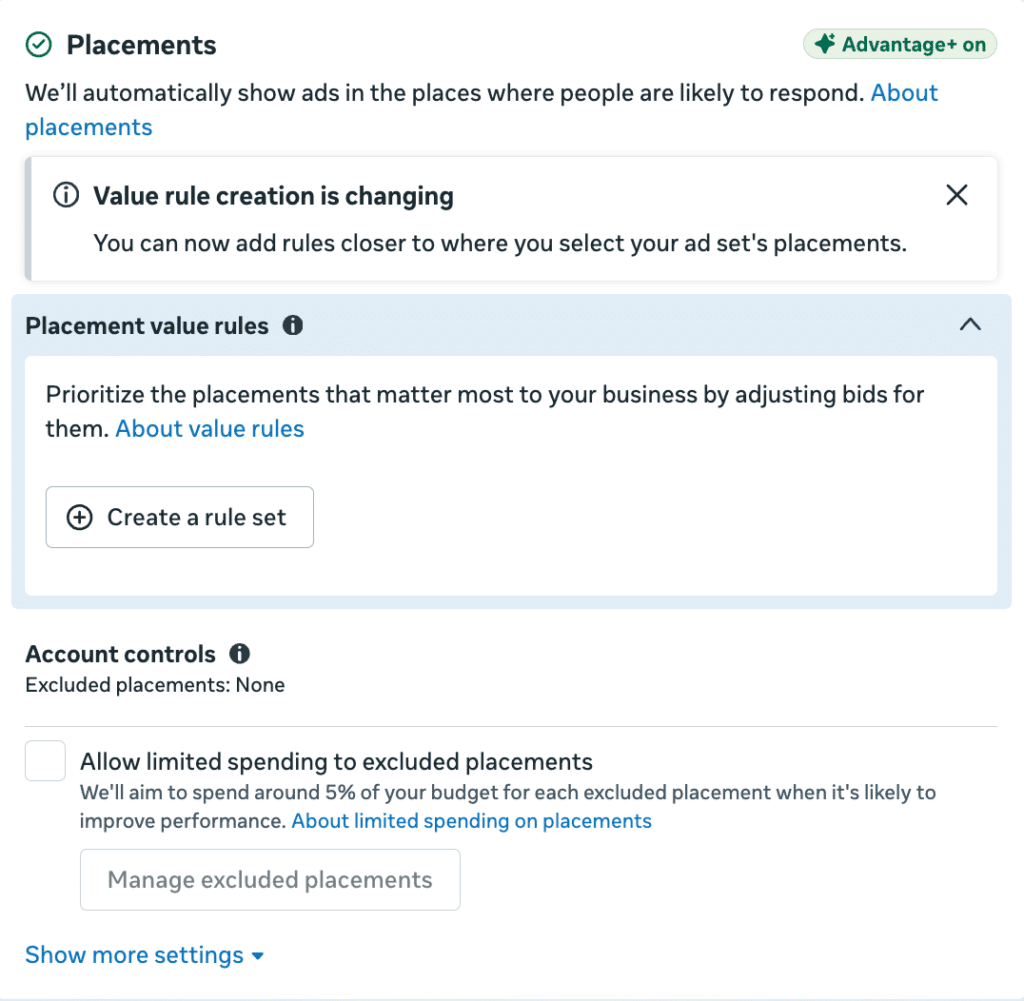
Advantage+ placements
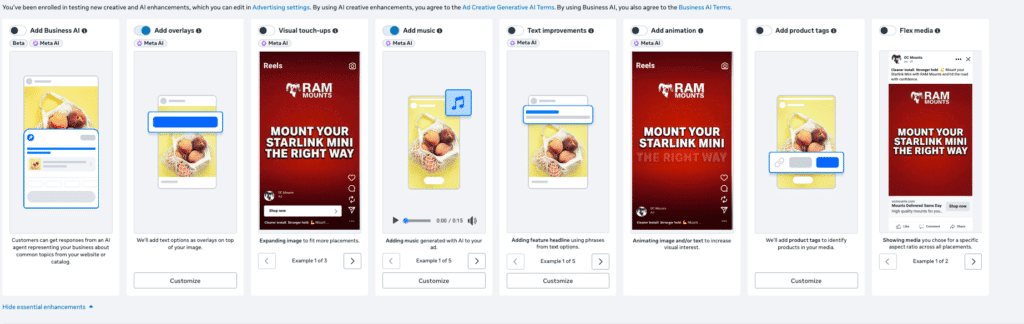
Advantage+ creative enhancements
Advantage+ catalog ads
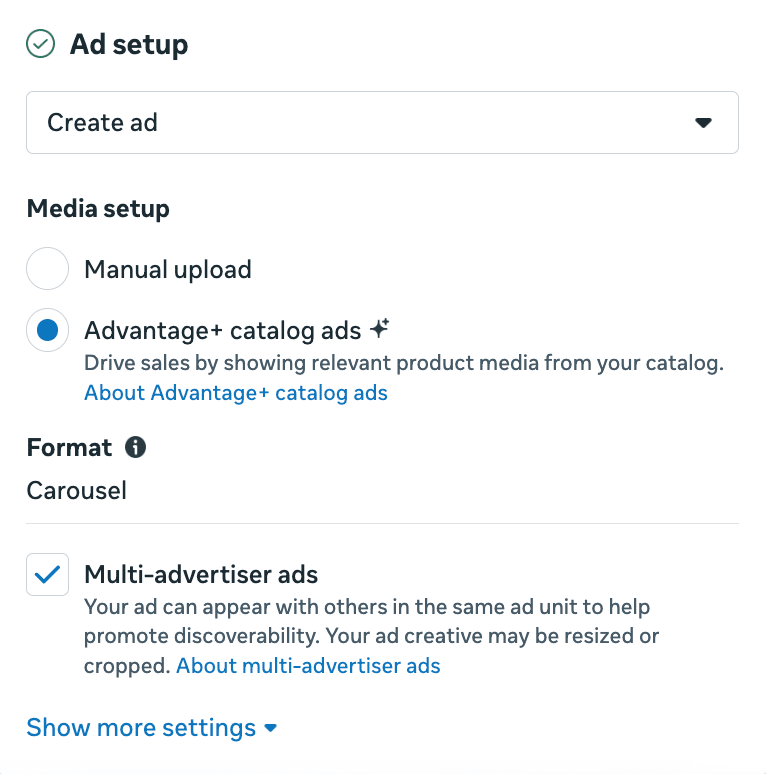
These controls also appear at different levels in Meta Ads Manager.

Campaign-level settings determine the objective, campaign type, and certain budget controls. The ad set level includes the audience, placements, and schedule. The ad level includes the creative enhancement options.
You could turn off Advantage+ audience at the ad set level while still using Advantage+ placements or creative enhancements elsewhere. There is no universal switch that disables all Advantage+ automation throughout a campaign.
Meta Preselects Recommended Features
Meta often enables its recommended settings by default. For example, Advantage+ placements are typically preselected at the ad set level when you create a campaign.
The same thing can happen at the ad level. Advantage+ creative enhancements may include image expansion, automatic cropping, text variations, music, or animation. These features can help an ad fit additional placements, but they may also change how the approved creative appears.
Open the full enhancement menu and review each option individually. Do not assume that turning off one creative feature disables the rest.
✍️Pro-Tip: Want to stop Meta from automatically opting your ad account into new creative features? You can manage account-wide defaults directly in Meta’s Advantage+ Creative Account Settings. Navigate to Ad account settings in your Meta Business Manager and select Creative features.
Creative Enhancements May Need to Be Turned Off More Than Once
Even after you turn off Advantage+ creative enhancements, it is important to check them again before publishing. Certain actions such as replacing the creative, changing the ad format, duplicating an ad, or editing an existing setup may cause recommended enhancements to appear selected again.
Meta may also introduce new enhancement options or reorganize existing ones within Ads Manager. A setting you previously reviewed may no longer be the only feature capable of changing your creative.
After making edits, be sure to reopen the full Advantage+ creative menu and confirm that each enhancement still reflects your desired selections. Check the settings one final time immediately before publishing, especially when the brand has strict creative requirements and automated changes have not been approved.
Should You Turn Advantage+ Off?
Advantage+ is available to help your ad account’s performance. Giving Meta more flexibility can help the system find conversions across audiences and placements, especially when an account has strong historical data and sufficient budget to learn.
More control may be necessary when:
- The brand has strict creative requirements
- Geographic targeting must be precise
- Certain placements are not suitable
- The advertiser is running a controlled test
- The ad includes important terms or disclaimers
- The brand has not approved automatic creative changes
Automated enhancements can be especially problematic during creative testing. If Meta adds music, changes a crop, or generates a text variation, it introduces variables beyond what you intended to test.
What to Check Before Publishing
Review the campaign at all three levels before publishing. Do not rely on the Advantage+ label alone to determine which automated features are active.
At the campaign level, confirm the campaign type and budget strategy.
At the ad set level, review the audience, placements, optimization, schedule, and destination settings. Check whether Meta has permission to expand beyond any audience suggestions you provided and confirm that all selected placements are appropriate for the creative.
At the ad level, review each section that may automatically change the creative or user experience. Depending on the campaign and ad account, this may include:
- Creative setup: Review options related to promotions, branding, website highlights, website summaries, and products.
- Advantage+ creative: Open the full enhancement menu and review each option individually, including creative translation and any features that may resize, crop, animate, add music to, or generate variations of your ad.
- Personalized destinations: Check whether Meta can optimize the website destination or send people to a Shop, product-browsing experience, or another destination.
The exact options available can vary by campaign objective, ad format, and account. If you make changes after completing your initial review, check the Advantage+ creative settings again before publishing.
Keep Control Where It Matters
Advantage+ features are not inherently good or bad. The value of each feature depends on the campaign’s goals, available data, creative requirements, and testing strategy. Automation may help Meta find additional opportunities, but it should not come at the expense of brand standards or a controlled test.
The key is to stop treating Advantage+ as a single switch. Review automation at every campaign level, understand what each setting controls, and keep it enabled only where it supports the strategy. This approach gives Meta room to optimize while allowing advertisers to maintain control over the decisions that matter most.